
How to Tell If Your Battery or Charging Port Is the Problem

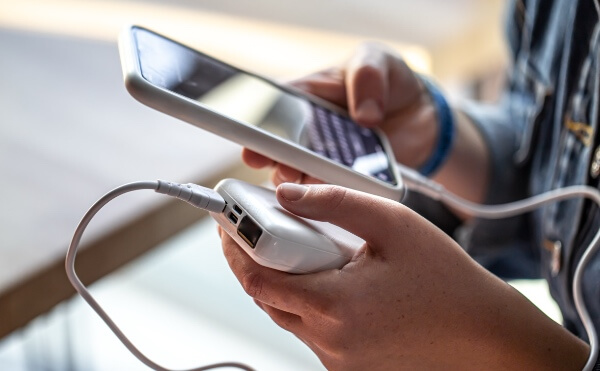
You plug in your phone or laptop — but nothing happens. No charging light, no power-up, and no reassuring battery icon. It’s a frustrating situation we see all the time at Tech Sync (Mississauga). The question is: is the problem your battery or your charging port?
Both components play a crucial role in powering your device, and when one fails, it can leave you completely disconnected. The tricky part is that battery and charging port issues often look the same — your device won’t charge or turn on.
In this guide, we’ll show you how to tell the difference between a dead battery and a damaged charging port, along with what you can do before bringing it in for repair.
1. The Common Symptoms — Battery vs. Charging Port
When your device doesn’t charge, here are the most common signs for each issue:
🔋 Signs of a Bad Battery
-
The battery drains quickly, even when unused.
-
The phone or laptop powers off randomly.
-
The device only works when plugged in.
-
It heats up abnormally while charging.
-
The battery health (in Settings) shows significant wear.
⚡ Signs of a Faulty Charging Port
-
The charging cable feels loose or doesn’t stay in.
-
You have to wiggle the cable to make it charge.
-
The device doesn’t charge at all, even with new cables.
-
The charging icon flickers on and off.
-
You see visible dust, corrosion, or damage inside the port.
If your device shows multiple symptoms from one list, you likely know where the problem lies — but let’s go deeper to confirm it.
2. Step-by-Step: Testing the Charging Port
Before assuming the battery is dead, it’s worth ruling out a charging port problem — it’s one of the most common and fixable hardware issues we see at Tech Sync.
Here’s how to test it:
✅ Step 1: Try a Different Cable and Adapter
A surprising number of “charging port issues” are caused by faulty cables.
-
Use a different cable and wall adapter that you know works.
-
Plug into a different outlet.
-
If you’re using a laptop, try charging via a different port (e.g., USB-C vs. MagSafe).
If it starts charging with the new setup, the problem was your cable — not the device.
✅ Step 2: Clean the Charging Port
Lint, dust, and tiny particles can block the connection between the charger and port.
How to clean it safely:
-
Power off your device completely.
-
Use a wooden toothpick or soft brush to gently remove debris.
-
Never use metal tools — they can short or damage the pins.
-
Blow lightly into the port or use compressed air from a safe distance.
After cleaning, plug it back in. If it charges, congratulations — you just saved yourself a repair bill.
✅ Step 3: Test with an External Power Source
If you’re using a laptop, try charging through an external docking station or a different charging input (if available).
For smartphones, try wireless charging (if supported). If wireless charging works but cable charging doesn’t, it’s almost certainly a charging port issue.
✅ Step 4: Check for Physical Damage
Use a flashlight to inspect the port:
-
Are any of the pins bent or missing?
-
Do you see corrosion, moisture, or burn marks?
If so, your port will likely need professional repair or replacement. At Tech Sync, our technicians in Mississauga can usually replace charging ports for most phones and laptops the same day.
3. Step-by-Step: Testing the Battery
If the charging port looks fine, it’s time to check the battery.
✅ Step 1: Observe Charging Behavior
Plug in your charger and watch closely:
-
Does a charging icon appear briefly, then disappear?
-
Does your device heat up slightly (normal) or stay completely cold (no power flow)?
If nothing happens at all — no lights, sound, or warmth — the battery may be fully dead or disconnected.
✅ Step 2: Check Battery Health (for Phones & Laptops)
Most devices let you view your battery’s condition:
-
iPhone: Go to Settings → Battery → Battery Health & Charging.
-
Android: Dial #0228# or check Settings → Battery Usage.
-
MacBook: Hold Option and click the battery icon → see “Condition.”
-
Windows laptops: Run a battery report using Command Prompt:
Then open the generated report file.
If your battery health shows below 80%, it’s time for a replacement.
✅ Step 3: Try a Different Power Source
For laptops, connect your charger to a different wall socket or surge protector.
For phones, plug into your computer’s USB port instead of the wall.
If it starts charging in one setup but not another, you might have an electrical or adapter issue, not a dead battery.
✅ Step 4: Try a Forced Restart or Reset
Sometimes your device’s software simply doesn’t recognize the power signal.
Try these steps:
-
iPhone: Quickly press Volume Up, then Volume Down, then hold Power until the Apple logo appears.
-
Android: Hold Power + Volume Down for 10–15 seconds.
-
Windows laptop: Disconnect battery (if possible) and hold the power button for 15 seconds.
-
MacBook: Press Control + Option + Shift + Power for 10 seconds.
If it powers on afterward, the battery may not have been the issue at all — it was just a temporary glitch.
4. When It’s Definitely the Battery
If your device turns on only when plugged in, or shuts down immediately after unplugging, your battery is done.
You might also notice:
-
It takes forever to charge (and drops instantly when unplugged).
-
The back of your phone or laptop feels swollen.
-
The battery percentage jumps up and down erratically.
⚠️ Warning: A swollen battery can be dangerous — it can leak or even burst. If you notice bulging, don’t try to remove it yourself. Bring it to Tech Sync immediately for safe disposal and replacement.
5. When It’s Definitely the Charging Port
You’ve cleaned the port, tried multiple cables, and confirmed the charger works — but your device still won’t charge.
You might also find that:
-
The port feels loose or wobbly.
-
You have to hold the cable at a specific angle.
-
The port area smells burnt or feels unusually warm.
Those are clear signs of a damaged or broken charging port. Fortunately, this is a quick and inexpensive repair that we handle at Tech Sync, often on the same day.
6. When to Visit Tech Sync (Mississauga)
If you’ve gone through all these steps and your device still won’t charge or turn on, it’s time to call in the pros.
At Tech Sync, we specialize in diagnosing and repairing:
-
Battery replacements for phones, tablets, and laptops
-
Charging port repairs and connector replacements
-
Power circuit and motherboard issues
-
Same-day repairs with a full warranty on parts and labor
Our Mississauga technicians use professional diagnostic tools to determine exactly what’s wrong — so you only pay for the fix you need.
When your device won’t charge, it’s easy to assume the worst — but often it’s something simple. A quick cleaning, a new cable, or a professional battery replacement can get your device back to life in no time.
If you’re in Mississauga and struggling with charging issues, visit Tech Sync. We’ll test your battery and charging port, pinpoint the issue, and repair it fast — so you can stay powered up and connected.